Create a culture of innovation
Download our free step-by-step guide on encouraging healthy risk-taking
Get the guide
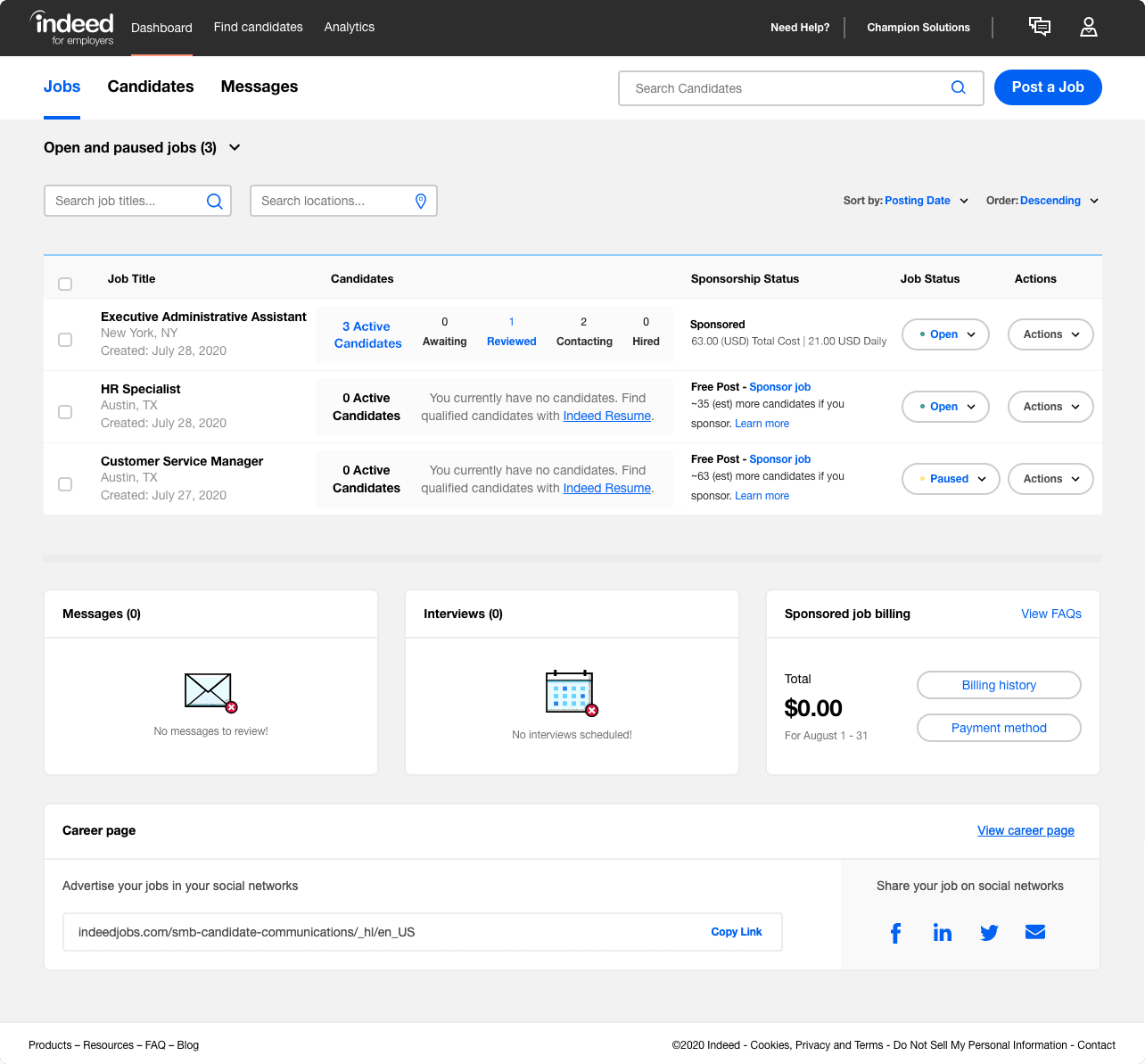
What is the Employer Dashboard?
The Employer Dashboard empowers you to efficiently manage your jobs from posting to making the hire, all in one place, allowing you to put more time back into your business. As it’s a one-stop shop for all your hiring tasks on Indeed, it streamlines your ability to manage multiple job postings and candidates at once.
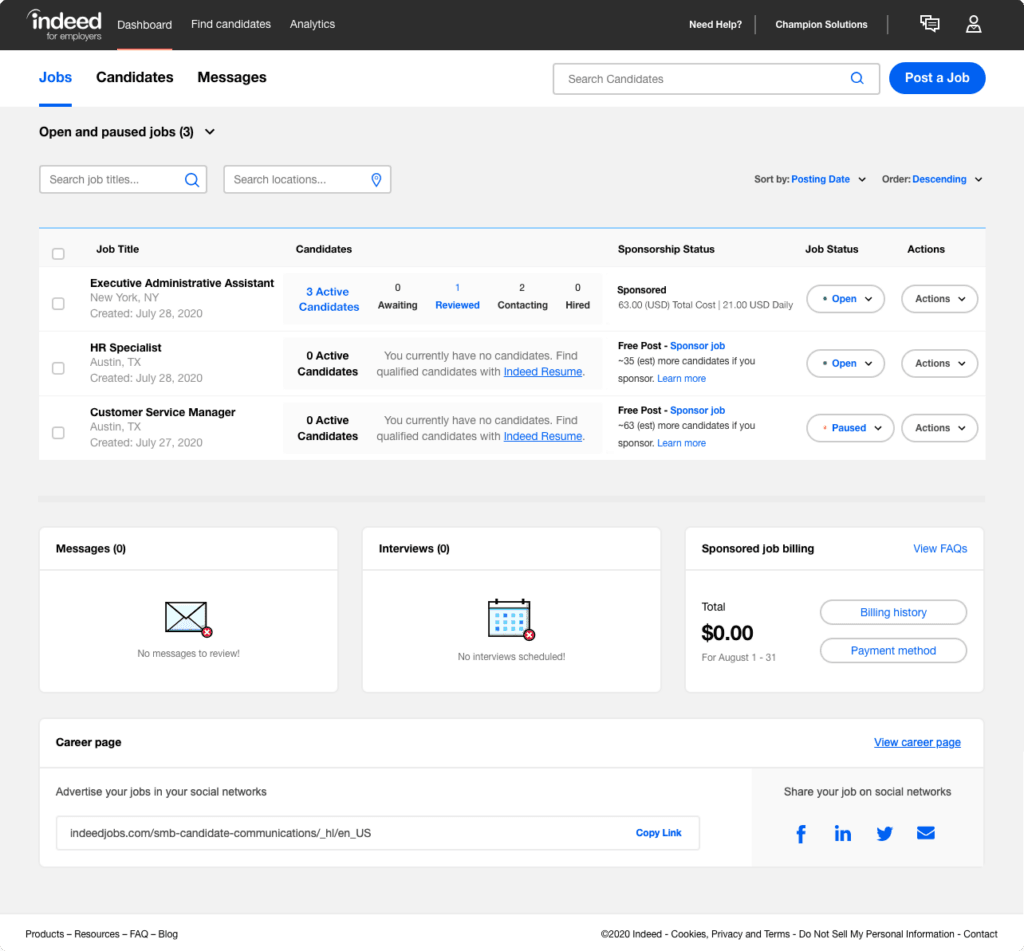
Within your Employer Dashboard, you can:
- Manage and edit job posts
- Create and use job tags to organise and search for your jobs quickly
- Sponsor your jobs and manage your budget
- Create and manage hiring campaigns (multiple jobs managed with one overall budget)
- See job post performance reports to improve your hiring process
- Filter applicants by location, qualifications, and more
- Message candidates and schedule interviews
- Keep track of where candidates are in your hiring process
- Get feedback from internal stakeholders
But that’s just the tip of the iceberg. Let’s dive in and explore the features you can take advantage of within your Employer Dashboard.
Managing your job posts
The Employer Dashboard allows you to view, manage, and edit all of your job postings in one place. Here’s how you can manage multiple job postings through your dashboard.
Tagging job posts*
Custom tags for jobs serve as a powerful organisational tool that makes managing your jobs easier and faster on Indeed. Using multiple tags per job provides the ultimate flexibility in viewing and actioning different sets of jobs and gives you complete control over how tags and groups of jobs are organised across users.
Job tags are ideal for employers who have:
- A large number of jobs to manage
- Multiple recruitment teams
- Unique workflows
By attaching custom keywords to your jobs, you can filter specific groups of jobs, streamline your workflow and more easily facilitate bulk actions.
Here are some common tag use cases we recommend:
- Grouping jobs by priority, like “High Priority”
- Adding business region, division or department tags
- Tagging jobs by brand
- Grouping jobs by recruiter or recruitment project (e.g. location opening, specific roles or by region)
Editing and optimising your job posts
At some point, you may need to update an existing job post, whether your hiring needs have changed, the role has evolved or you want to optimise the posting to attract more qualified candidates.
You can edit job posts right from the Employer Dashboard by following these steps:
- Navigate to the Jobs tab
- Click on the three dots to the right of the job you’d like to edit
- Click Edit job
- Click on the pencil icon next to any section you’d like to edit
It’s natural that after posting your job on Indeed, over time, as your hiring needs change, you’ll need to pause, close or re-open a job. Pausing a job post temporarily removes it from Indeed’s search results. Closing your job removes it from search results and archives it for future reference.
To update the status of your job, select the status menu on the right-hand side of that job. To bulk edit the status of multiple jobs, check the boxes on the left-hand side of the jobs you’d like to update. From the Set status menu that appears on the upper right-hand side, select a status.
Sorting and filtering jobs
When you have multiple open positions, it can be a challenge to keep track of them all. Indeed makes this process easy. If you want to find a specific job you’re managing, you can filter by job title, location, tags, and much more.
To sort your jobs, use the Sort by list in the upper right of the page. You can sort your jobs by:
- The date the job was posted
- Job title
- Location
- Job status (e.g., Open, Paused, Closed)
Viewing performance reports and metrics
To get a detailed understanding of how your job postings are performing, you can generate performance reports from the Employer Dashboard through Indeed Analytics. This can help you identify your highest and lowest performing jobs and campaigns to see what’s working and what isn’t, which can be used to optimise existing jobs and campaigns.
With Indeed Analytics you can view useful reports such as:
- How today’s performance compares to historical performance
- Daily performance data for a specific job
- Campaign performance data per device type
- Month-on-month performance
A low-performing job could indicate that your job title or job description needs some fine-tuning. For example, if impressions are low for a particular job, it could mean that your job title or job description may not be matching job seeker search terms. In this case, using a more common job title or more relevant keywords to describe duties and responsibilities could help your job post appear in more of the right search results.
To access your performance reports:
- Go to the Jobs tab
- Click on the three dots to the right of the job you’re interested in
- Select See performance report from the options
- In the performance report, you can view the performance of one job, a group of jobs or all jobs
Identify top candidates
Within your Employer Dashboard, you can filter applicants by criteria like location and qualifications. Candidates can also be sorted alphabetically by name or by the date they applied. These filters can help you create a shortlist of candidates whom you would like to learn more about through a phone screen or interview.
Message your top picks
Within the Employer Dashboard, you can easily see which applicants meet your job requirements and begin a conversation. Your messages with candidates can be easily tracked through your dashboard – a convenient alternative to managing everything through your email inbox.
To message a promising candidate, click the candidate’s name to bring up their Candidate Detail Page. From there, you can send a message that will appear in their email inbox. You can also go to the Messages tab to see all the messages you have sent and received.

If you’ve invited colleagues to participate in the hiring process through linked accounts, they will also be able to access applicant information and send messages to candidates.
Not sure what to say when reaching out to candidates? Start with a short, clear message that explains why you are contacting them, what caught your eye in their background, and what next steps you are proposing, such as a brief call or virtual interview. Keep the tone warm and professional, personalise at least one detail so it does not feel generic, and end with a simple question or call to action that makes it easy for them to reply.
Collaborating with your hiring team
A common delay in the hiring process can arise from the need to include multiple stakeholders within the business (recruiters, hiring managers, leadership, etc.). With Indeed, you can make hiring a collaborative process, which is especially useful if your hiring process requires input and collaboration from multiple people.
You can add other people to the Employer Dashboard by setting access levels. This allows you to share notes about candidates, forward CVs and notify colleagues about candidate status, which can help ensure that all stakeholders are in agreement about how candidates are being evaluated and which candidates should move forward.
To invite members of your hiring team to view applicants and provide feedback, follow these steps:
- Click on the profile icon in the top right-hand corner of the Employer Dashboard
- Choose Manage access from the drop-down menu
- Provide your colleague/collaborator’s email address(es)
- Set their access level
Frequently asked questions
Managing job posts FAQs
How do I edit a job I posted on Indeed?
Go to your Jobs tab and click the Actions button, then select Edit Jobs from the drop-down menu.
How do I set the status of a job?
To pause, close or reopen a job, select the Status button on the right-hand side of the job card, then set the status you want.
To bulk set job statuses:
- Check the boxes on the left-hand side of each job card.
- A bulk status adjustment will appear above the job list on the right-hand side. Select the set status drop-down and set the status you want.
How do I see my job details?
Click the job title to bring up the job details page.
You can also reach this page by clicking the Actions button and selecting View job details from the drop-down menu.
How do I tag my jobs?*
To create new tag(s) for a single job, click on the three dots to the right of the job you’d like to edit and click Create tag. Tags can have a maximum of 40 characters. Other account users will be able to see and search these tags as well.
To create new tag(s) for multiple jobs:
- Click the checkbox to the left of any job where you’d like to add tag(s).
- Click Tag jobs in the bulk action bar that appears above the jobs list.
- Click Create tag.
On the Manage your tags page, you can view:
- All existing tags
- Tag descriptions
- Number of jobs associated with each tag
- Who created the tag
Pro tip: Clicking on the number of jobs provides a filtered view of the Jobs list.
*Product feature not available to all users at this time.
How do I filter my jobs?
Filter your jobs by clicking on the “Search Jobs” drop-down menu above the Job Title column. You have the option to type directly into the search field, select from drop-down menus, and/or use check boxes to narrow down your view. You can also check Set as Default to save this view. You always have the option to change this later, and any updates you make to a specific job will overwrite your previous settings.
How do I sort my jobs?
Click the “Sort By” drop-down at the right-hand side of the Employer Dashboard. From there, you can sort by posting date, job title, location, or job status.
Candidate management FAQs
How can I see if a candidate applied to more than one of my jobs?
Click a candidate’s name to bring up the Candidate Detail Page. Under Notes, you’ll see a list of every one of your jobs the candidate has applied for.
Where are my past notes on a candidate?
Click a candidate’s name to bring up the Candidate Detail Page. On the right-hand side, you’ll see a full history of your candidate notes.
How do I export candidates for a certain job?
Go to your Candidates Tab and select All Open and Paused Jobs, check the “Select All Candidates” box, then click the Export Candidates button.
How do I export candidates for all jobs?
Go to your Candidates tab and select All Open and Paused Jobs, check the select all candidates box, then click the Export Candidates button.
If you want to export candidates from a closed job, go to the Jobs tab and select the job from the closed jobs list. Then, check the boxes of all the candidates you want to export and click the Export Candidates button.
How can I find a candidate from a past job?
Go to the Candidates tab and search for the candidate in the search box at the top right of the Employer Dashboard. This searches Open and Paused Jobs by default.
If you closed the job, go to the Jobs tab and select Closed Jobs at the top left of the Employer Dashboard. Then select the right job title and search for the candidate you’re looking for.
Putting it all together
Your Employer Dashboard brings every part of your hiring workflow into one place, so you can spend less time juggling tools and more time connecting with the right candidates. By managing job posts, budgets, and tags from a single view, monitoring performance through Indeed Analytics, and using filters and statuses to keep your pipeline organised, you can quickly see what is working and where you may need to adjust titles, descriptions, or spend.
When you pair these tools with built-in messaging, interviewing, and team collaboration features, your dashboard becomes a central hub that helps you move candidates from apply to hire more efficiently and confidently.
Back to Hiring with Indeed
*Indeed provides this information as a courtesy to users of this site. Please note that we are not your recruiting or legal advisor, we are not responsible for the content of your job descriptions, and none of the information provided herein guarantees performance.
This article is based on product information available at the time of writing, which may change at any time. Indeed does not guarantee that this information is always up to date. Please seek out your CS/Sales rep for the latest information on this topic.